Tactical GPS speaks Cursor-on-Target. Connect it to a TAK server and your team sees
your position, you see theirs, and pins, shapes and chat move between you — with the same
certificate enrollment ATAK and iTAK use.
before you start
Everything TAK is in Settings → Team → TAK Server. Once a host is configured, an antenna
button appears in the map control column as the fast way back.
Nothing is transmitted until you connect. Position and chat data is sent
only to the server you configure — the app never shares your location with any other service. The
first connection asks Share your location? and explains that connecting streams your live
location and callsign, continues in the background, and stops when you tap Disconnect.
Known to work with TAK Server, OpenTAKServer and
FreeTAKServer. Default ports are 8446 for enrollment and 8089 for
the data stream.
certificate enrollment
The easiest path: let the app fetch its own client certificate from the server, with no
.p12 file to move around.
Get your server's ATAK or iTAK QR code and your username and password from whoever runs it.
Open Settings → Team → TAK Server → Enroll with Server (QR).
Tap Scan QR Code and point the camera at it. Host and ports fill in automatically.
Enter your Username and Password under Credentials.
Tap Enroll. The app generates a key pair, requests a certificate and installs it. The row then reads Enrolled.
No QR code? Fill in Host, Enrollment Port and Stream Port
by hand on the same screen and enroll exactly the same way.
A code the app does not understand reports That QR code isn't a recognized TAK
server code. — it is normally a QR for something other than TAK enrollment.
Already have a .p12?
Use Client Certificate (Manual) instead: import the file, enter its password when asked, and the app stores it. Remove deletes it again.
Skip Certificate Verification exists for self-signed test servers and is
off by default. Turning it on means any server can impersonate yours, and the status panel
then says Connected without certificate verification so the risk stays visible. Leave it
off against a real server.
identity and connection
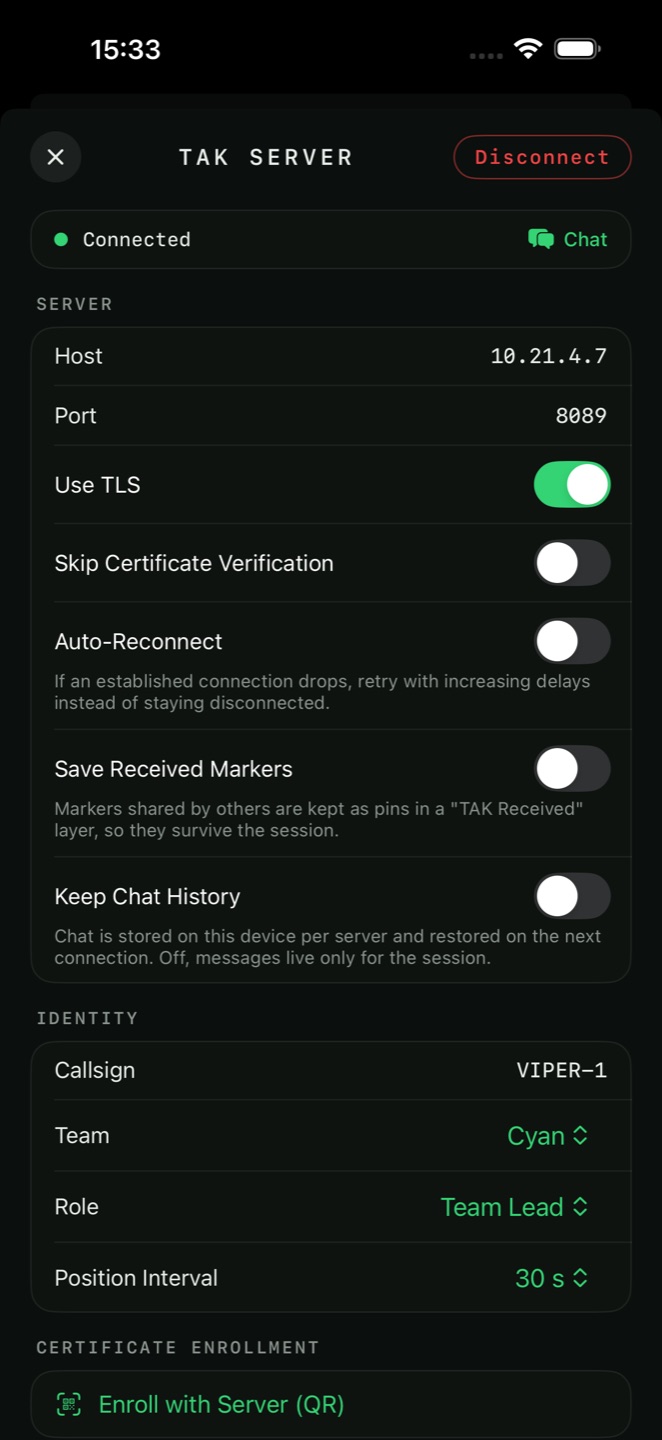
Under Identity, set how you appear to the team:
Callsign
Your name on the network — VIPER-1
Team
A colour: White, Yellow, Orange, Magenta, Red, Maroon, Purple, Dark Blue, Blue, Cyan, Teal or Green
Role
Team Member, Team Lead, HQ, Sniper, Medic, Forward Observer, RTO or K9
Position Interval
How often your position is sent: 5, 10, 15, 30, 60 or 120 seconds
Under Server, set Host, Port and Use TLS, then Connect.
A longer Position Interval saves battery and bandwidth. Five seconds suits
a close-quarters team; two minutes suits a vehicle move across a large area.
Auto-Reconnect retries a dropped connection with increasing delays instead
of leaving you silently disconnected. It only re-arms after a session that actually connected, so
a wrong host still fails fast rather than hammering the server.
The app speaks both the legacy XML protocol and TAK Protocol version 1
(protobuf), detected per message and negotiated with the server. XML remains the fallback
throughout, so an older server still works.
on the network
Position sharing
Teammates appear on the map with their callsigns and team colours, and a Team list shows who is on. Sharing continues in the background while connected.
Sending pins and shapes
Any pin or shape has Send via TAK in its menu, which puts it on the network as a CoT marker or shape. A label pin sends its text as the marker's callsign.
Receiving markers
Markers shared by others are drawn live. Switch on Save Received Markers and they are also kept as pins in a TAK Received layer, so they survive the session instead of vanishing when you disconnect.
GeoChat
The Chat button opens team messaging with an unread badge. Messages are grouped by room, with a chip bar for All plus each room, and a room per team member giving direct messages.
TAK server panel
Chat Notifications shows a banner when a message arrives while the chat is
closed. Keep Chat History stores chat on this device per server and restores it on the next
connection — with it off, messages live only for the session.
A direct message to someone who has gone offline is refused rather than
quietly broadcast to everyone. That is deliberate: a DM that silently becomes a broadcast is
worse than one that does not send.
Send Geofence Alerts broadcasts your geofence entries and exits to the
server. It is off by default, because it reveals your position at the fence line.
data packages
A TAK data package is a .zip with a manifest — the standard way a team distributes
an area pack. Import one through Settings → Data Import & Export → Import To Layer.
KML, KMZ, GPX and GeoJSON entries import as items through the normal parsers, and
.cot marker files become APP-6 pins. Certificates, preferences and the
manifest itself are skipped.
Maps bundled in the package are added as custom map sources, so an area pack can
deliver the imagery along with the overlay.
limits and privacy
Free users get five-minute TAK sessions. The panel shows Free
version, a live countdown and TAK connections are limited to 5 minutes per session.
Everything works — enrollment, position sharing, chat, markers — the session simply ends. Pro
removes the limit.
Photo attachments are never uploaded to a TAK server. A pin sent over CoT
carries its position, name and symbol, not its files.
Disconnecting stops all transmission immediately. The app holds no TAK connection
and sends no position when disconnected.